
Introduction
basin_extract is a Python package that belongs to the semi automated system for delineating river basins. This post is a manual on how to setup a Python environment for the basin_extract package in the Eclipse Integrated Development Environment (IDE).
Prerequisites
You must have installed Anaconda for handling virtual Python environments and Eclipse IDE for PyDev.
Setup virtual Python environment
The basin_extract package requires the standard (default) Python packages that come with Eclipse, plus some additional packages:
- numpy
- pandas
- shapely
- scipy
Trying to setup a working Python environment for basin_extract in October 2020 I found that the listed packages are incompatible in Python 3.8. The virtual environment herein is thus setup using the older Python 3.6 interpreter.
The basics of Conda virtual environments is covered in another post. More extensive information is available on the official conda document site. Here I will only step over the barebones of setting up a virtual environment for Ortho.
When you open a Terminal window on a machine with Conda installed, the first entry on the cursor line should be the active conda environment. (base) is the default (overall) environment. If the cursor line of your Terminal window does not say (base) you have activated another Conda environment. To return to base enter the command:
$ conda activate
Update conda and anaconda
Before setting up the virtual environment, update Conda and Anaconda at the terminal:
(base) …$ conda update conda
(base) …$ conda update anaconda
Create a Python 3.6 virtual environment
The basic command for creating a virtual Python environment with a pre-defined version of Python is (do not run it yet, read a bit further first):
(base) …$ conda create -n basin_extract_py36 python=3.6
If your Conda environment is defined to include a set of additional packages (if you have no idea about what I am writing, never mind and just continue), then these will be installed in your virtual environment on top of the default Python installation. To avoid that instead type:
(base) …$ conda create --no-default-packages -n basin_extract_py36 python=3.6
This will install a barebone Python 3.6 virtual environment even if you have defined additional packages to be installed by default. Now you can go ahead and create the barebone virtual environment with one of the command above.
Install additional packages
Your newly created environment does not include the additional packages needed (the ones listed above)for the Python package basin-extract. When adding these packages you have to make sure that they are installed within your new environment. That can be achieved by either destining the installation from (base) or first activate your new environment. Here I will only show how to change the active environment and then install. Thus activate your virtual environment:
(base) …$ conda activate basin_extract_py36
The cursor line will then change to reflect that you are now in another environment.
(basin_extract_py36) …$
With your new Python 3.6 environment active you can install the required packages:
(basin_extract_py36) …$ conda install -c conda-forge gdal
(basin_extract_py36) …$ conda install -c anaconda numpy
(basin_extract_py36) …$ conda install -c anaconda scipy
(basin_extract_py36) …$ conda install -c conda-forge shapely
Setting this up in October 2020, all installations went through without problems. However, setting up a virtual environment with more recent versions of Python can lead to conflicts between packages. For that reason it is better to install all required packages with the Python initial installation, as explained in the next section.
Install packages with the python version
Setting up a virtual environment with all the packages listed has the advantage that Conda checks the consistencies between all packages before installing. To try that out for the basin_extract environment, return to base:
(basin_extract_py36) …$ conda activate
And then extend the Conda create command with a list of all the packages to install:
(base) …$ conda create --no-default-packages -n basin_extract_py36 python=3.6 numpy scipy gdal shapely
Set your virtual environment as your Python interpreter in Eclipse
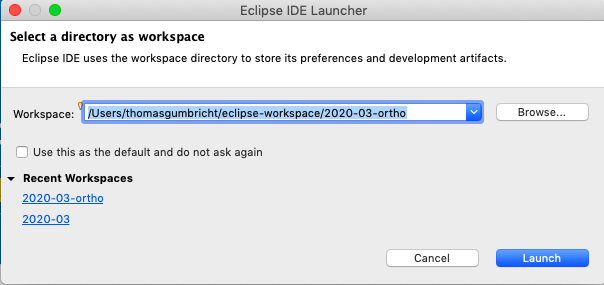
Start Eclipse. In the Eclipse IDE Launcher window, specify a new location and click .
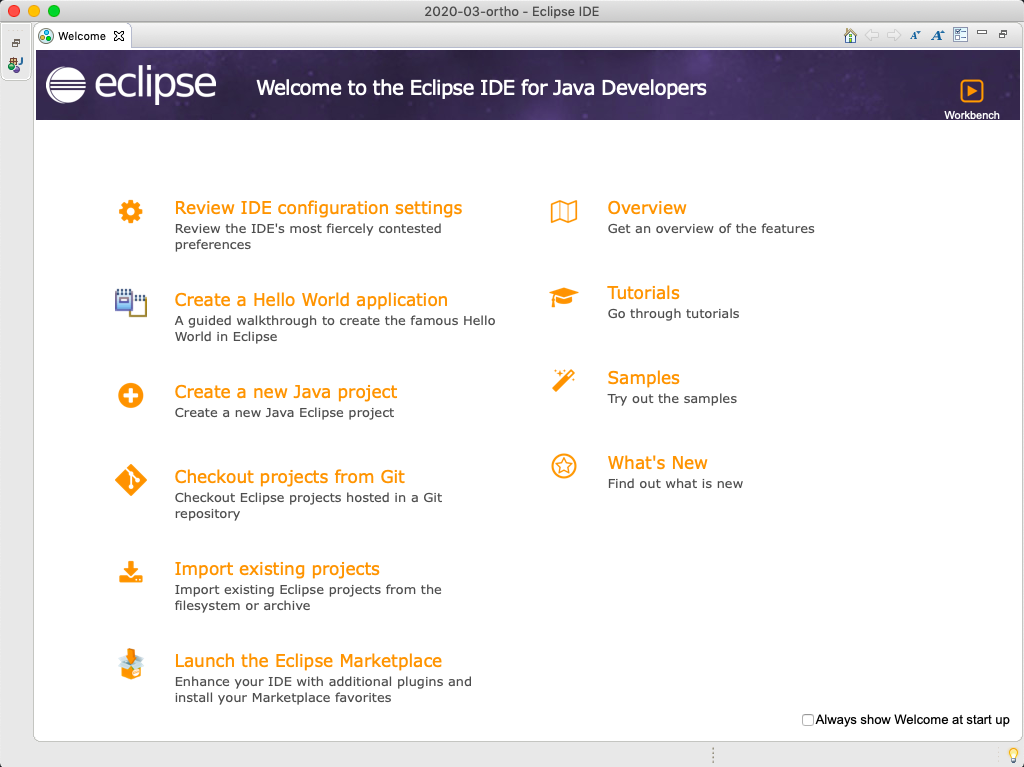
In the Welcome page that opens, just go to Workbench (in the upper right corner).
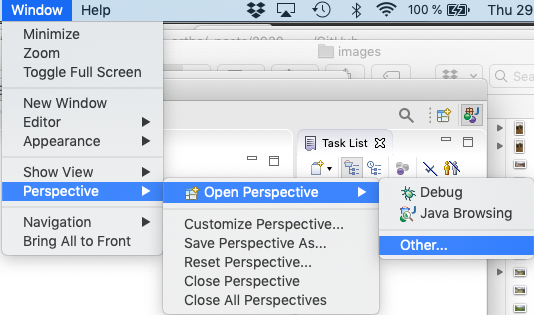
The default IDE that opens is for Java projects, but you want it to be a PyDev project page. To change to a PyDev perspective, go via the menu:
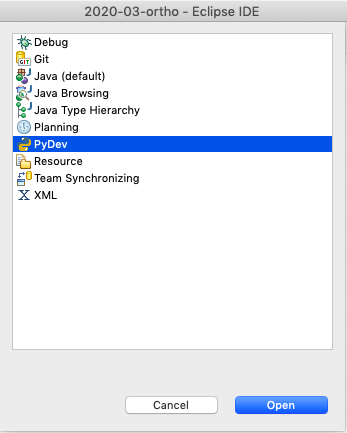
In the window that opens, select PyDev. If PyDev is not available as an alternative, you need to go back to post on Eclipse IDE for PyDev and use the Eclipse Marketplace to install PyDev for Eclipse.
To set up your virtual Python environment as the Python interpreter, go via the main menu:
And then in the Preference window that opens, go via the left side navigation:
,
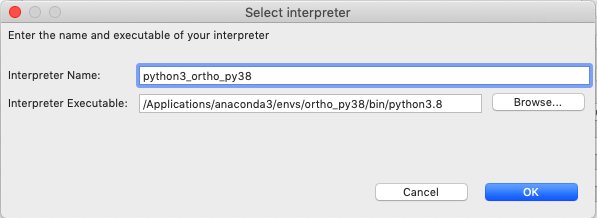
and the right side of the window expands. Click the and navigate to the directory envs under your Anaconda installation. There you will find the virtual environment that you just created, basin_extract_py36. The Python executable file is then under the path bin/python. The full path on my machine is shown in the figure below. Click to select the python interpreter.
In the next post you will setup the projects, packages and modules that constitute the basin_extract Python package.