
Introduction
The python package basin_extract is freely available as a repository on GitHub.
If you just want to download basin_extract from GitHub, just go ahead and you are done with this post. The rest of this post deals cloning either a stable version or a development version. The letter is intended for those who want to participate in the code development.
Prerequisits
If you want to use basin_extract with the IDE Eclipse you must have setup Eclipse as outlined in the previous post. It you want to participate in the development you should also have setup the git version control system.
Cloning alternatives
First you need to decide if you want to participate in the development, or even develop your own code. If you want to do either of those you should start by forking the original repo to your own GitHub account. If you d not need your won development version you can skip the forking and just clone the basin_extract from Karttur’s repo.
Fork project to your own repo
Login to your account on GitHub, or create a free account if you do not have one. While being logged in navigate to Karttur’s basin_extract repo. In the upper right corner, below the top menu row, there is a button for Fork. Click on it, and GitHub creates a fork (copy), then opens it in your own account.
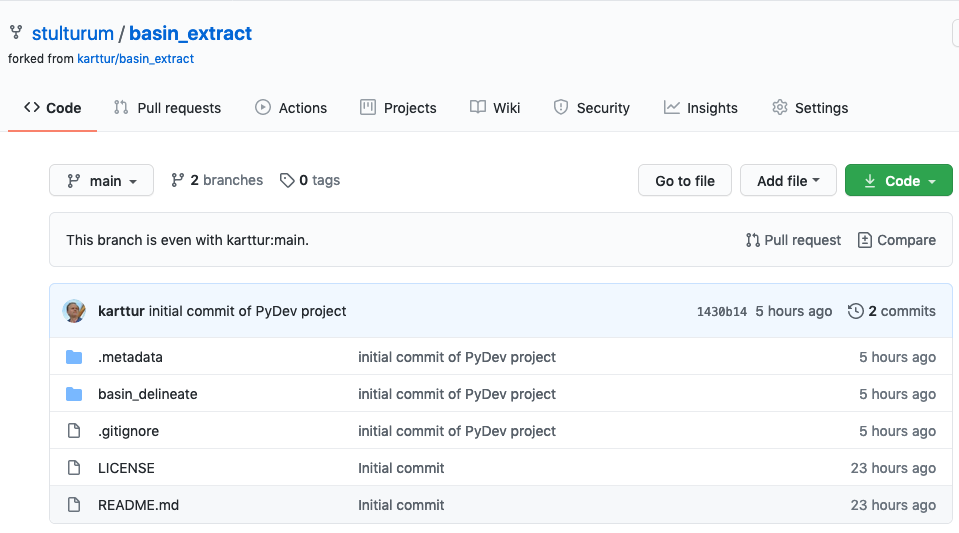
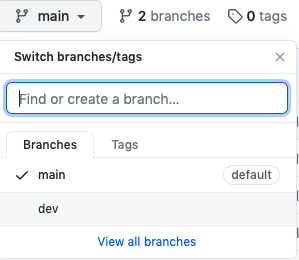 The forked repo has two branches. Change to the branch dev by clicking the branch button, as illustrated to the right. The page for the dev branch (below) tells you that This branch is 1 commit ahead of main.
With your own fork of the project basin_extract you are ready to get a local clone and starting coding. You can then push your improved/customized code to your won fork, and then push
Local clone
Regardless if you want to clone the stable (main) or development (dev) version, you have some different options.
- Clone using Eclipse at startup
- Clone from inside Eclipse
- Clone using git command line and then import separately into Eclipse
If you do not intend to use Eclipse you can use the third laternative, but you can also just download the package directly from GitHub.
Eclipse startup clone
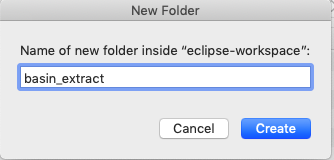 This is probably the easiest way to get the whole project setup in Eclipse. Start Eclipse and when the IDE launcher page open, create a new folder in your workspace directory. When the welcome pages opens, select the alternative Checkout projects from Git.
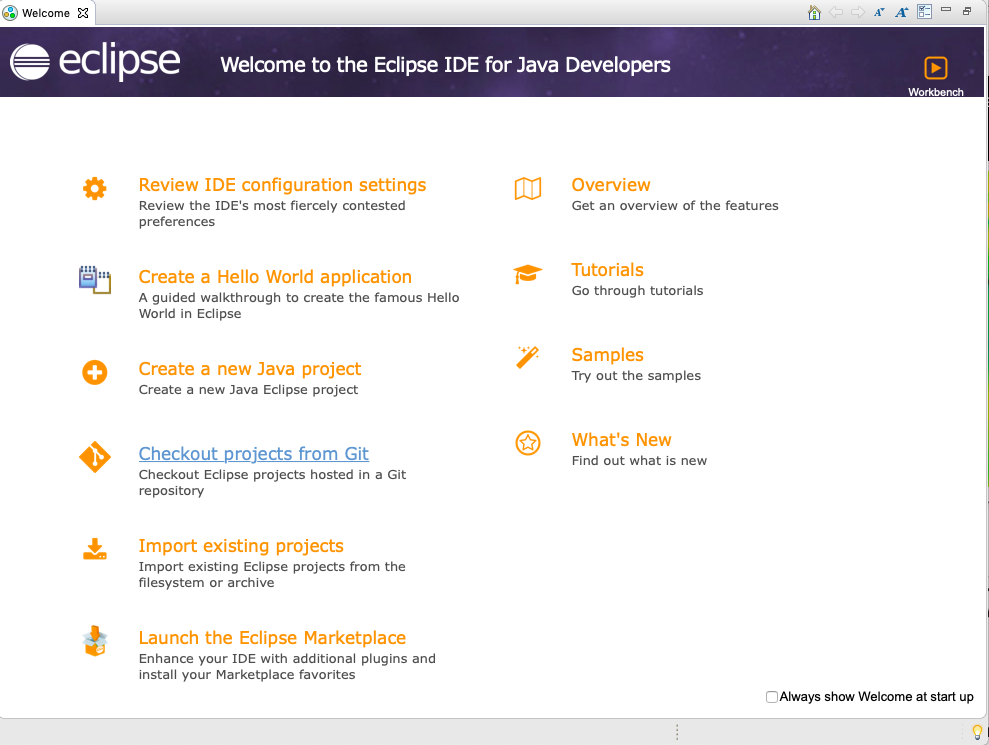
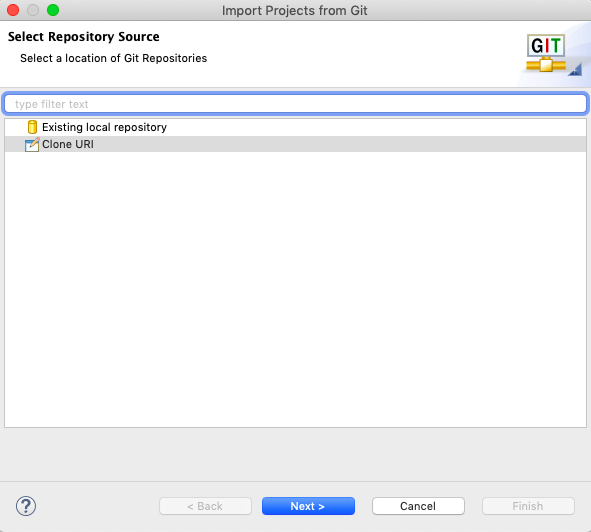
The next window that opens, Select Repository Source just highlight [Clone URI] and click .
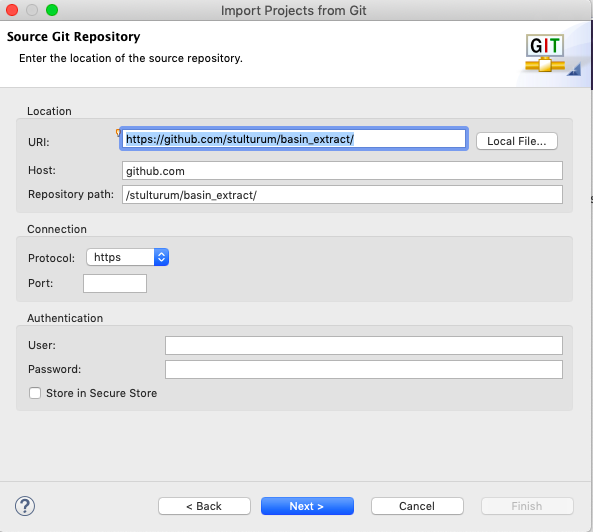
In the Source Git Repository window, paste the URI to the GitHub repo of basin_extract. Either Karttur’s original repo (if you are not pushing any changes back online) or your own fork (to allow staging and committing changes to the online repo). Then click .
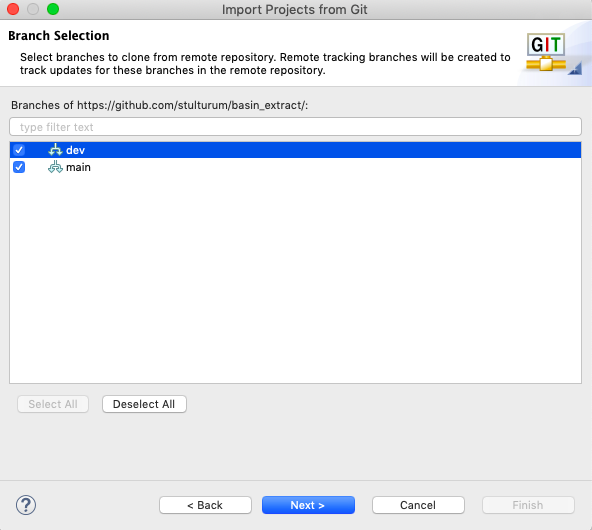
In the Branch selection window you should have two alternatives, dev and main. Choose the one that suit your needs (main if you are user, dev if you are a developer). Click .
Set the path to the directory you just created as the target Directory. DO NOT accept the default target path suggested by

In the next window (Select a wizard to use for importing projects) click the radio button for Importing Existing Eclipse Projects. Then .
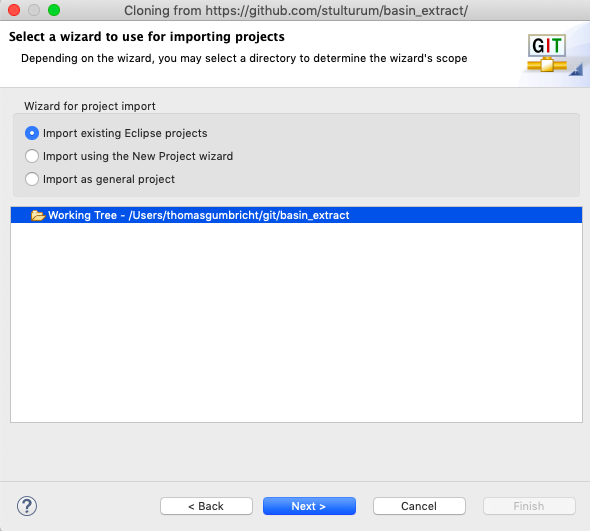
And you should have reached the last window, Import Projects and this time you can happily click .
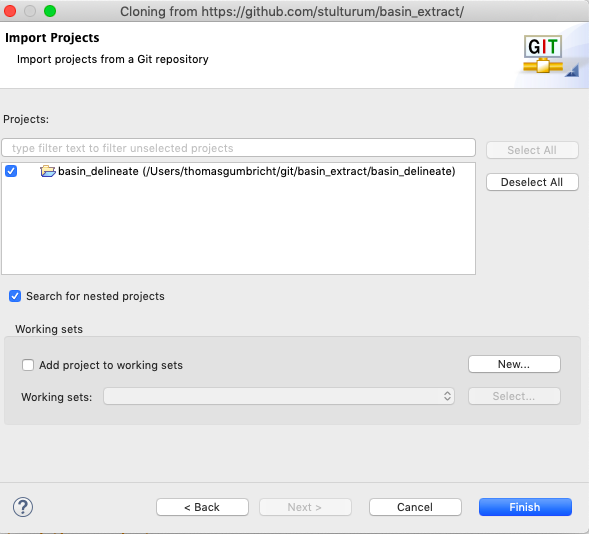
When the project is imported, Eclipse looks for a Python interpreter.
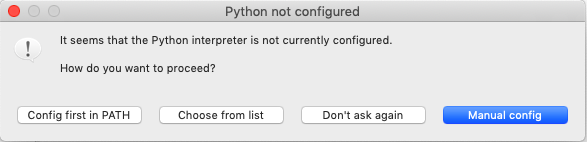
Click the and you will get to to the Preferences window and the menu set to identifying Python interpreters.
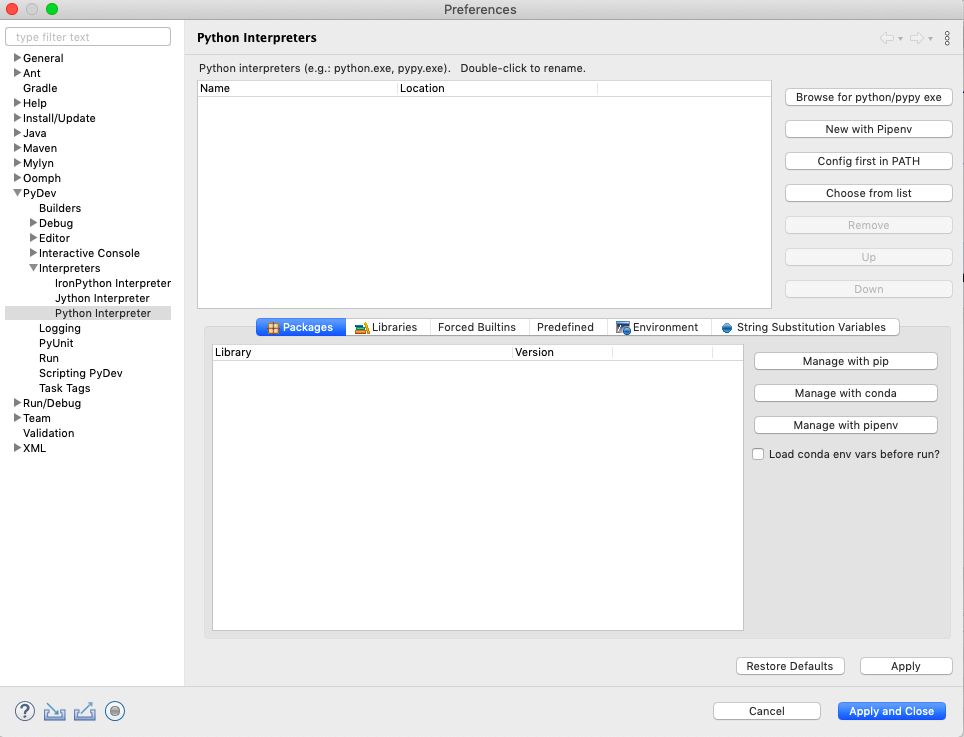
The Python interpreter you need is described in the parallel post on Eclipse for Basin extraction.
Clone from inside Eclipse
You can clone a git repo from within an existing Eclipse project. Start an empty Eclipse project. Get the GIT perspective. Either from the menu system:
.
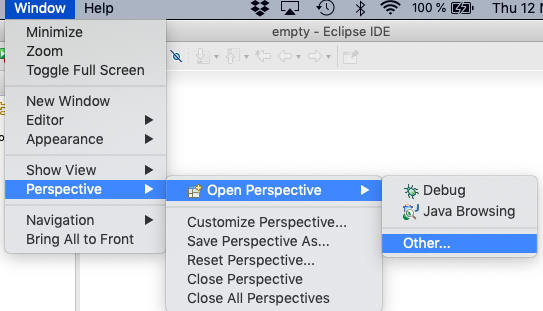
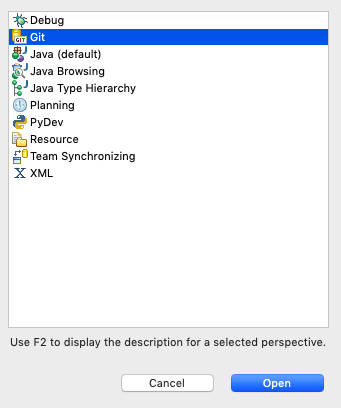
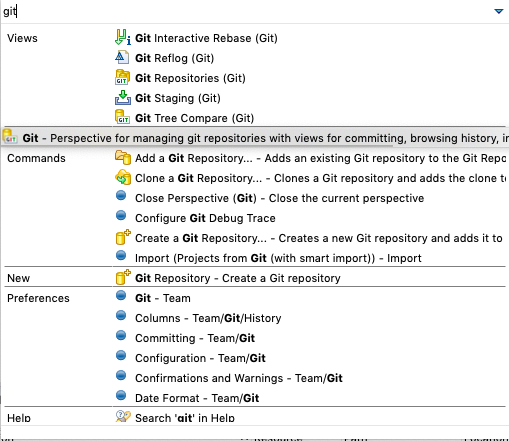
You can also use the search tool and start writing “git” and locate git perspective.
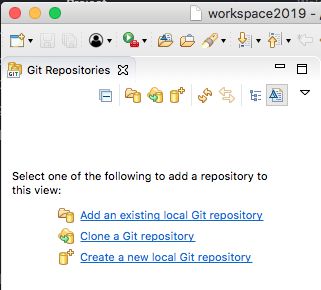
In the Git repositories view you should click the alternative Clone a Git repository (if no text appears slide the cursor over the icons to get the alternative Clone a Git repository and add the clone to this view).

This will open the same Source Git Repository window as in the previous section and the steps that then follows are the same. But Eclipse does not recognise the imported repo as a PyDev project. You have to define the PyDev project and then team up the git repo packages. How to do that is covered in the post Setup Eclipse teamed with GitHub repository.